bspwm is a minimal tiling window manager: you mainly configure the WM via a shell script (bspwmrc) and handle keybindings via sxhkd (sxhkdrc).
A good “getting started” path is: install bspwm + sxhkd, copy the example configs into ~/.config/…, make bspwmrc executable, then start sxhkd and bspwm from your X session.
Install and start
- Install
bspwm(the WM) andsxhkd(hotkey daemon). - Start
bspwmvia Xinit (or a display manager session), since bspwm is an X11 window manager.
Create initial config
- Copy the example configs from
/usr/share/doc/bspwm/examples/into:~/.config/bspwm/bspwmrc~/.config/sxhkd/sxhkdrc
- Make sure
bspwmrcis executable, because it’s a shell script that configures bspwm by runningbspccommands. - ArchWiki’s example uses these commands (adjust if your distro differs):
install -Dm755 /usr/share/doc/bspwm/examples/bspwmrc ~/.config/bspwm/bspwmrcinstall -Dm644 /usr/share/doc/bspwm/examples/sxhkdrc ~/.config/sxhkd/sxhkdrc
Learn the core concepts
bspwmrcis where you set window manager behavior (desktops, gaps, rules, etc.) by sending messages withbspc.sxhkdrcis where you define keybindings that typically callbspc(focus/move windows, switch desktops, launch apps).- bspwm doesn’t handle keyboard input directly, so a hotkey daemon like
sxhkdis required for shortcuts.
First troubleshooting checklist
If you boot into a blank screen and keys don’t work, check these first:
sxhkdis installed and actually started (and started in the background, since it blocks).~/.config/bspwm/bspwmrcis executable.- Your
sxhkdrcterminal command matches a terminal you have installed (the example config may referenceurxvt).
1. Core Architecture: The Binary Tree Philosophy
Unlike dynamic tilers (like DWM or Xmonad) that use predefined layout lists (master/stack, grid, spiral), bspwm is a manual tiler based on a data structure known as a full binary tree.
1.1 The Data Structure
Every monitor contains at least one desktop. Every desktop is the root of a binary tree.
- Nodes: The fundamental unit. A node is either a leaf (holding a window) or an internal node (holding two children).
- Leaves: The actual application windows (e.g., Firefox, Terminal).
- Internal Nodes: Containers that define the split direction (Horizontal/Vertical) and the split ratio (e.g., 0.5 for equal halves) between their two children.
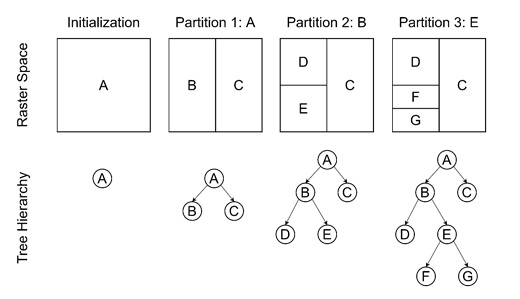
BSPWM Binary Tree Structure
1.2 The Implication of “Manual” Tiling
In standard tilers, you “switch layouts.” In bspwm, you manipulate the tree directly.
- Automatic Mode: Bspwm decides where the next window goes based on the
automatic_scheme(usually “spiral” or “longest_side”). - Manual Mode: You explicitly “preselect” a region (North, South, East, West) on an existing node. The next window splits that specific node in the chosen direction. This architecture makes bspwm strictly deterministic. The layout is exactly what you build, nothing more, nothing less.
2. Installation & Environment
Bspwm adheres strictly to the Unix philosophy: “Do one thing and do it well.” It only manages windows. It does not handle:
- Keyboard input (handled by
sxhkd) - Compositing (handled by
picom) - Bars/Panels (handled by
polybarorlemonbar) - Wallpaper (handled by
fehornitrogen)
2.1 Dependencies (Arch Linux / General)
You must install both the window manager and the hotkey daemon.
# Arch Linux
sudo pacman -S bspwm sxhkd

# Debian/Ubuntu
sudo apt install bspwm sxhkd
2.2 X11 Session Entry
Because bspwm is just a binary, it must be launched via .xinitrc or a Display Manager (LightDM/GDM).
File: ~/.xinitrc
# Load resources
xrdb -merge ~/.Xresources &

# Start the hotkey daemon in the background (CRITICAL)
sxhkd &

# Start the compositor (optional but recommended)
picom &

# Set wallpaper
feh --bg-fill ~/Pictures/wall.jpg &

# Set cursor shape (fixes "X" cursor bug)
xsetroot -cursor_name left_ptr &

# Launch bspwm (must be the last line, no '&')
exec bspwm
3. The Nervous System: sxhkd
sxhkd is an X daemon that reacts to input events and executes commands. It is independent of bspwm but essential for it.
Config Location: ~/.config/sxhkd/sxhkdrc
3.1 Syntax & Chords
sxhkd uses a unique syntax that allows for “chord chains” (pressing keys in sequence) and “brace expansion” (compacting similar commands).
Brace Expansion (The Power Feature)
Instead of writing 4 separate lines for moving windows, you write one:
# Move window node (super + shift + {h,j,k,l})
super + shift + {h,j,k,l}
    bspc node -v {-20 0, 0 20, 0 -20, 20 0}
- When you press
Super + Shift + h, it executesbspc node -v -20 0. - When you press
Super + Shift + j, it executesbspc node -v 0 20.
Chord Chains
You can create “modes” without actual modes.
# Press Super + o, release, then press 'r' to reload config
super + o ; r
    bspc wm -r
3.2 Essential Keybindings Table
| Key Chord | Command | Description |
|---|---|---|
super + Return | $TERMINAL | Launch terminal |
super + w | bspc node -c | Close focused window |
super + {h,j,k,l} | bspc node -f {west,south,north,east} | Focus window directionally |
super + {1-9} | bspc desktop -f ^{1-9} | Switch to desktop 1-9 |
super + shift + {1-9} | bspc node -d ^{1-9} | Send window to desktop 1-9 |
4. The Brain: bspwmrc
File: ~/.config/bspwm/bspwmrc
Requirement: Must be executable (chmod +x bspwmrc).
This file is simply a shell script. It runs once at startup. If you change it, you must reload bspwm (bspc wm -r) to re-run it.
4.1 Monitor Configuration
You must explicitly map desktops to monitors. If you plug in a second monitor, bspwm won’t use it until you tell it to.
#!/bin/sh

# Clean setup for one or two monitors
if [[ $(xrandr -q | grep "HDMI-0 connected") ]]; then
    # Dual monitor setup
    bspc monitor DP-0 -d I II III IV V
    bspc monitor HDMI-0 -d VI VII VIII IX X
else
    # Single monitor setup
    bspc monitor DP-0 -d I II III IV V VI VII VIII IX X
fi
4.2 Global Aesthetics
# Border width (pixels)
bspc config border_width         2

# Window gap (space between windows)
bspc config window_gap          12

# Split ratio (0.5 = 50/50 split)
bspc config split_ratio          0.50

# Border colors
bspc config normal_border_color "#4c566a"
bspc config focused_border_color "#88c0d0"

# Focus follows mouse (true/false)
bspc config focus_follows_pointer true
5. Control Plane: Mastering bspc
bspc (Binary Space Partitioning Control) is the command-line client. You use it in bspwmrc, sxhkdrc, and your own scripts. Understanding bspc is understanding bspwm.
5.1 Selectors: The Query Language
Almost every bspc command requires you to select a target.
- Nodes:
-n(Target a window) - Desktops:
-d(Target a workspace) - Monitors:
-m(Target a screen)
Advanced Node Selectors
You can target nodes based on relationships, flags, or history.
focused: The currently active window.east,west,north,south: Directional neighbors.last: The previously focused node.biggest: The largest node on the desktop.@parent: The internal node holding the current window and its sibling. Example: Swap the current window with the biggest window on the desktop:
bspc node -s biggest.local
5.2 Node Modifications
- Flags: Nodes can be
hidden,sticky(follows you across desktops),private(ignored by some queries), orlocked(cannot be closed).
bspc node -g sticky  # Toggle sticky
bspc node -t floating # Float the window
- Preselection: The killer feature. Define where the next window opens.
bspc node -p south   # Preselect the bottom half
bspc node -p cancel  # Cancel preselection
6. Window Management Dynamics
6.1 Manual vs. Automatic
By default, bspwm splits windows automatically (spiraling inward). To take control, you use Preselection.
- Input: User presses
Super + Ctrl + L(East). - Visual Feedback: Bspwm highlights the right half of the current node in a distinct color (configurable via
presel_feedback_color). - Action: User opens a terminal.
- Result: The terminal spawns exactly in that highlighted area.
6.2 Receptacles
A Receptacle is a “placeholder” node—a leaf that contains no window. It reserves space in the tree layout.
- Use case: You want to build a complex layout (e.g., 3 small windows on the left, one big on the right) before you open the applications.
- Command:
bspc node -i(Insert receptacle).
6.3 Swallowing (Terminal Suppression)
“Swallowing” is when you launch a GUI app (like MPV or Sxiv) from a terminal, and the terminal disappears, being “swallowed” by the new app. When the app closes, the terminal returns.
- Bspwm does not do this natively.
- Solution: Use an external listener script or a wrapper tool like
devourin your sxhkd config.
7. Advanced Logic: External Rules
This is bspwm’s most powerful configuration feature. Instead of a simple “If app is Firefox -> move to desktop 2” list, you can point bspwm to a script.
Config: bspc config external_rules_command ~/.config/bspwm/external_rules
7.1 The External Rules Script
Bspwm passes the Window ID, Class, Instance, and Title to this script as arguments. The script prints commands to stdout that bspwm executes for that specific window.
Example: ~/.config/bspwm/external_rules
#!/bin/sh

wid=$1
class=$2
instance=$3
title=$(xtitle "$wid")

# If it's a Picture-in-Picture window (Firefox/Chrome)
if [ "$title" = "Picture-in-Picture" ]; then
    echo "state=floating"
    echo "sticky=on"
    echo "border=off"
    exit 0
fi

# If it's GIMP, move to desktop 8 and follow it
if [ "$class" = "Gimp" ]; then
    echo "desktop=^8"
    echo "follow=on"
    exit 0
fi

# Complex logic: If 2 nodes already exist on desktop 1, send next one to desktop 2
count=$(bspc query -N -d ^1 | wc -l)
if [ "$count" -ge 2 ]; then
    echo "desktop=^2"
fi
This allows for logic impossible in other window managers (e.g., “Float this window only if it’s Tuesday and I’m on Monitor 2”).
8. The Ecosystem
A “naked” bspwm is just black screens. You need the ecosystem to make it a workstation.
8.1 Polybar (Status Bar)
Polybar has a built-in bspwm module. It can display the focused desktop, occupied desktops, and urgent alerts.
Module Config:
[module/bspwm]
type = internal/bspwm
label-focused = %name%
label-focused-background = #3b4252
label-focused-underline= #88c0d0
label-occupied = %name%
label-urgent = %name%!
label-empty =
8.2 Rofi (Application Launcher)
Rofi works perfectly as a menu. Bind it in sxhkd:
super + space
    rofi -show drun -show-icons
8.3 Scratchpads (Hidden Windows)
Bspwm creates scratchpads easily using node flags.
- Hide:
bspc node -g hidden -f - Show:
bspc node <selector> -g hidden=off -fScripted Toggle (Sticky Scratchpad):
#!/bin/sh
id=$(xdotool search --class "scratchpad_term" | tail -1)

if [ -z "$id" ]; then
    # Launch if not running
    alacritty --class scratchpad_term &
else
    # Toggle visibility
    if bspc query -N -n "$id.hidden"; then
        bspc node "$id" -g hidden=off -d focused -f
    else
        bspc node "$id" -g hidden=on
    fi
fi
9. Troubleshooting & Debugging
9.1 The Blank Screen of Death
If you log in and see nothing:
- Check Executable: Did you
chmod +x ~/.config/bspwm/bspwmrc? - Check sxhkd: Is
sxhkdrunning? Switch to TTY (Ctrl+Alt+F2), login, and runpidof sxhkd. - Check Terminal: Does your
sxhkdrclaunch a terminal you actually have installed? (Default is oftenurxvt, you might havealacrittyorkitty).
9.2 Tree Visualization
To understand why your windows are splitting weirdly, dump the tree state:
bspc query -T -d | jq .
This outputs the JSON representation of the current desktop’s binary tree.
9.3 Orphaned Nodes
Sometimes a “ghost” node remains. Cleanup:
# Remove the node explicitly
bspc node <node_id> -k